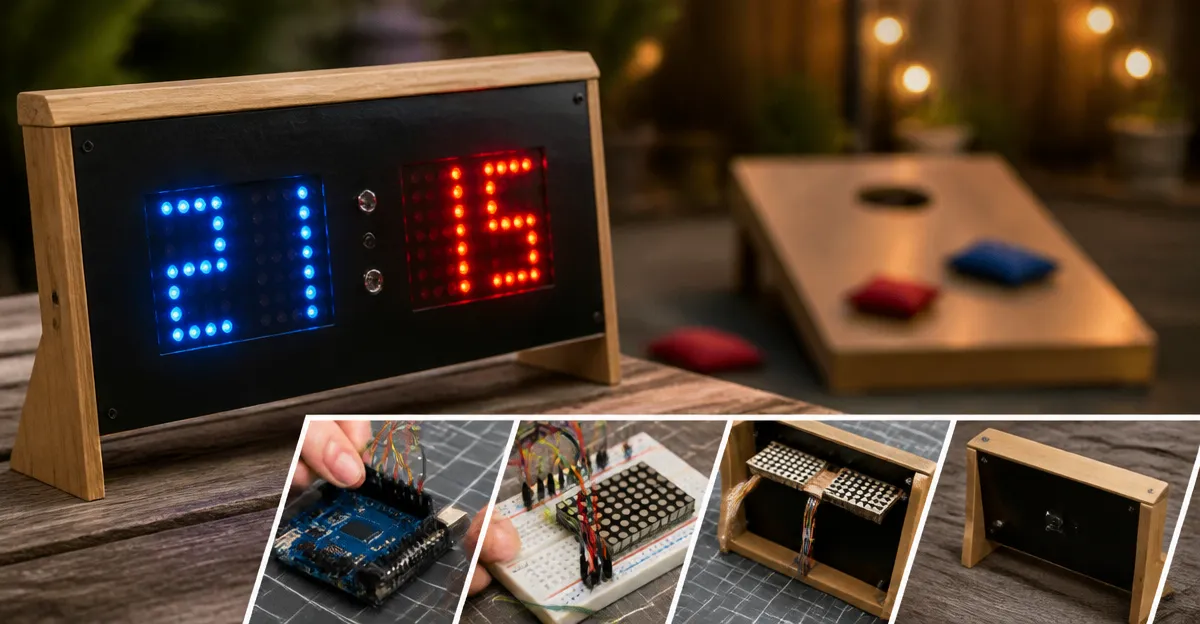
How to Build a DIY Electronic Cornhole Scoreboard: Step-by-Step Arduino & LED Guide for Beginners
Introduction
This guide explains how one can construct a functional electronic scoreboard for a cornhole game using an Arduino microcontroller and a full‑color LED matrix. The reader will learn how to select appropriate starter kits, wire the components, program the display, and mount the system onto a wooden board. By following the instructions, one can create a durable, reusable scoreboard that enhances gameplay and demonstrates fundamental electronics concepts.
The project combines basic digital input, sensor reading, and visual output, making it valuable for hobbyists, educators, and families seeking a hands‑on learning experience. The guide emphasizes safety, proper power handling, and clear documentation, ensuring that beginners can succeed without prior experience.
What You’ll Need
- ELEGOO UNO R3 Starter Kit – $45.99, rating 4.7/5 (16,617 reviews)
- REXQualis Arduino UNO R3 Starter Kit – $31.34, rating 4.7/5 (1,383 reviews)
- LAFVIN Arduino Starter Kit – $30.99, rating 4.7/5 (749 reviews)
- Arduino Starter Kit R4 UNO R4 WiFi – $95.00, rating 4/5 (96 reviews)
- Waveshare 64x32 RGB LED Matrix Panel – $28.79, rating 3.7/5 (48 reviews)
- Two 9V 1A power adapters (included in the REXQualis kit)
- Jumper wires, breadboard, and basic hand tools (included in the starter kits)
- Wooden cornhole board (standard size 24" x 48")
- Mounting hardware (screws, standoffs, zip ties)
Step 1: Choose the Arduino Platform
One should begin by selecting an Arduino board that matches the project budget and future expansion plans. The ELEGOO UNO R3 Starter Kit provides a reliable UNO R3 controller, a solderless breadboard, and a comprehensive set of sensors and actuators. Its price of $45.99 and high rating of 4.7/5 indicate strong value for beginners. The kit includes a pre‑soldered LCD1602 module, which can be repurposed for debugging during development.
If a more economical option is desired, the REXQualis Arduino UNO R3 Starter Kit offers a comparable UNO‑compatible board for $31.34. It also supplies a 9V 1A power adapter, eliminating the need to purchase a separate battery. The inclusion of a ULN2003 driver board simplifies motor control, which may be useful for future scoreboard animations.
For users who prefer built‑in wireless connectivity, the Arduino Starter Kit R4 UNO R4 WiFi includes Wi‑Fi and Bluetooth, enabling remote score updates via a smartphone app. Although the price is higher at $95.00, the official Arduino branding and certification voucher provide added credibility for classroom settings.
One should select the board based on the desired balance between cost, connectivity, and component availability. For this guide, the ELEGOO UNO R3 is used as the primary controller because it offers an excellent blend of features and documentation.
Step 2: Prepare Power Supply and Safety
The LED matrix panel requires a stable 5V supply capable of delivering up to 2.5A. The REXQualis kit includes a 9V 1A power adapter that can be used with a step‑down regulator (e.g., AMS1117‑5.0) to achieve the necessary voltage. Using a regulated supply prevents voltage spikes that could damage the matrix or the Arduino.
First, connect the 9V adapter to the regulator input, then attach the regulator output to the 5V rail of the breadboard. Verify the output with a multimeter before connecting the matrix. This approach ensures that the Arduino receives its recommended 5V from the USB port while the matrix receives a dedicated 5V line.
It is essential to observe polarity when wiring the power module. The ELEGOO kit provides a breadboard power module with clearly marked positive and negative rails, reducing the risk of reverse polarity. The kit’s documentation emphasizes keeping the input voltage below 9V, which aligns with the chosen adapter.
One should also include a 470 µF electrolytic capacitor across the matrix power pins to smooth transient currents during rapid color changes. This practice improves visual stability and protects the power supply.
Step 3: Wire the LED Matrix Panel
The Waveshare 64x32 RGB LED Matrix Panel features a HUB75 interface with separate input and output headers, allowing multiple panels to be chained. For a single scoreboard, only the input header is required.
Connect the following pins from the Arduino UNO to the matrix input header using jumper wires: R1, G1, B1, R2, G2, B2, A, B, C, D, LAT, CLK, OE, and GND. The matrix documentation provides a pinout diagram; the ELEGOO starter kit includes color‑coded jumper wires that simplify identification.
Secure the matrix on a small acrylic frame using the mounting holes provided on the panel. This frame can then be attached to the cornhole board with screws. The panel dimensions of 160 mm × 80 mm fit comfortably in the upper corner of the board, leaving room for score digits.
After wiring, upload a basic test sketch from the PxMatrix library (compatible with Arduino) to confirm that all 2048 RGB LEDs light correctly. Adjust the color order using display.setColorOrder(RRBBGG) if the colors appear swapped, as noted by users in the product reviews.
Step 4: Implement Score Input Buttons
Each team requires a tactile push button to increment the score. The ELEGOO kit supplies a variety of push‑button modules with built‑in debouncing resistors. Place one button on each side of the cornhole board, near the player’s hand position.
Wire each button to a digital input pin on the Arduino, using the internal pull‑up resistor configuration (e.g., pinMode(buttonPin, INPUT_PULLUP)). When the button is pressed, the input reads LOW, triggering a score increment in the software.
To avoid accidental multiple increments, implement a simple software debounce routine that ignores further presses for 200 ms after a valid press. This technique ensures accurate scoring during fast gameplay.
Optionally, add an audible click using a small piezo buzzer from the ELEGOO kit to provide feedback to the players.
Step 5: Program the Scoreboard Logic
Open the Arduino IDE and install the PxMatrix library from the Library Manager. The library supports the HUB75 interface and provides functions for drawing text, shapes, and scrolling effects.
Create a sketch that defines two integer variables, scoreA and scoreB. In the loop() function, read the button states, update the scores, and call display.print() to render the numbers on the matrix. Use a large, bold font (e.g., 8x8) to ensure readability from a distance of several feet.
Include a reset button that sets both scores to zero when held for more than two seconds. This feature can be implemented using a third tactile switch or by detecting a long‑press on one of the existing buttons.
Finally, add a simple animation that flashes the winning team’s score in bright red when a team reaches 21 points. The animation demonstrates the matrix’s full‑color capability and adds excitement to the game.
Step 6: Enclose and Mount the System
Secure the Arduino board on the backside of the cornhole board using standoffs and screws. The ELEGOO kit includes a variety of screws that fit standard mounting holes, eliminating the need to purchase additional hardware.
Route the jumper wires through drilled holes to keep the interior tidy. Use zip ties from the kit to bundle excess wire length, preventing entanglement during transport.
Mount the LED matrix frame flush with the board surface, ensuring that the display is visible to both players. Seal any gaps with silicone sealant to protect the electronics from moisture during outdoor play.
Attach the power adapter to the board using a cable clamp, allowing easy unplugging for storage. Verify that the entire assembly is stable before the first game.
Tips & Pro Tips
- Label each button with the corresponding team name using waterproof stickers; this prevents confusion during rapid scoring.
- Use the LCD1602 module from the ELEGOO kit as a secondary debug display to show raw button states during initial testing.
- For wireless score updates, replace the UNO R3 with the Arduino Starter Kit R4 UNO R4 WiFi and send score data over MQTT to a smartphone app.
- When chaining multiple LED panels for a larger scoreboard, ensure that the power supply can provide the combined current (approximately 2.5A per panel).
- Store the Arduino code in a version‑controlled repository (e.g., Git) to track improvements and share with the maker community.
Troubleshooting
Problem: Matrix displays solid red or no colors.
Solution: Verify that the color order is set correctly in the sketch; adjust using display.setColorOrder() as described in the panel’s positive reviews.
Problem: Arduino does not recognize the USB port.
Solution: Install the latest Arduino IDE drivers and ensure that the correct COM port is selected, a common issue noted by REXQualis users.
Problem: Power supply overheats during prolonged play.
Solution: Add an additional 470 µF capacitor and consider a dedicated 5V 3A switching regulator to handle peak current demands.
Conclusion
By following the steps outlined above, one can construct a reliable, visually appealing electronic scoreboard for a cornhole game. The project integrates fundamental Arduino programming, LED matrix control, and practical wiring techniques, providing a solid foundation for further maker endeavors. The recommended starter kits supply all necessary components at competitive prices, while the Waveshare matrix delivers vibrant, customizable graphics. One is encouraged to experiment with additional features such as wireless score updates, animated victory screens, or integration with a mobile app.
Products Mentioned in This Guide
Frequently Asked Questions
What hardware is required to build an Arduino‑based cornhole scoreboard?
You need an Arduino UNO (or compatible board), a full‑color LED matrix display, a power supply (5 V/2 A recommended), jumper wires, a breadboard or perfboard, and a wooden board for mounting.
Is this project suitable for beginners with no electronics experience?
Yes, the guide walks you through wiring, basic digital input, and simple Arduino code, making it approachable for first‑time makers.
How do I power the LED matrix safely?
Use a regulated 5 V power adapter capable of at least 2 A, connect the ground to the Arduino, and add a decoupling capacitor near the matrix to prevent voltage spikes.
Can I customize the scoreboard to show team names or different colors?
The provided Arduino sketch includes functions to change displayed text and colors, so you can edit the code to add team names or custom color schemes.
What is the best way to mount the electronics on the cornhole board?
Secure the LED matrix and Arduino to the wooden board with screws or zip ties, then protect the wiring with heat‑shrink tubing and a small enclosure to keep everything weather‑resistant.